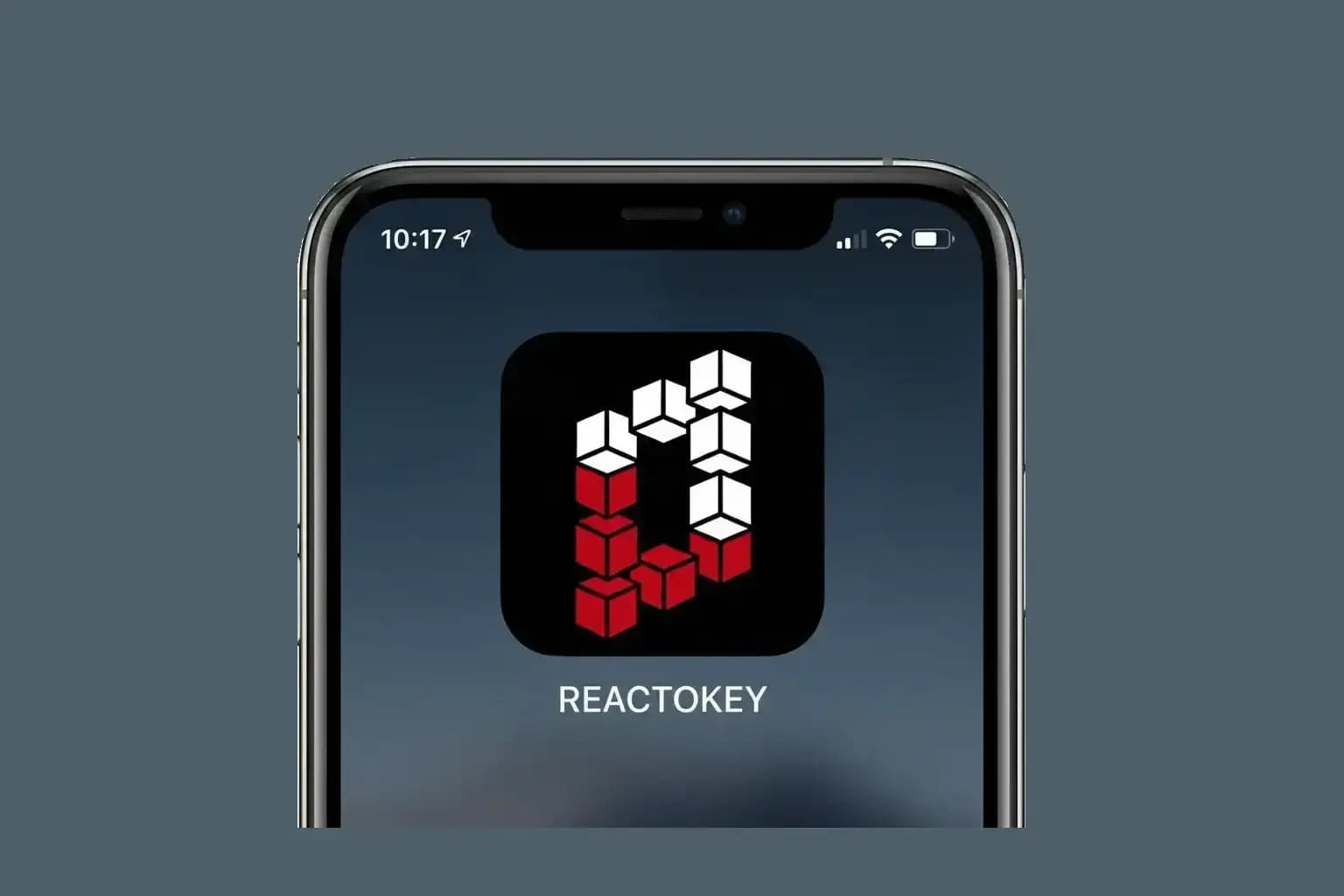
How to Turn Any Website Into an App on Your iPhone
TL;DR
You can transform any website into a native-like app on your iPhone using Safari's "Add to Home Screen" feature. When enabled as a Web App, the website opens in full-screen mode without browser UI, supports notifications, and behaves just like a downloaded app—all without taking up extra storage space.
What Is a Progressive Web App and Why Does It Matter?
Progressive Web Apps (PWAs) and Web Apps represent the convergence of web and native app experiences. Unlike traditional browser bookmarks, a properly configured Web App on iOS provides:
- Full-Screen Experience: No Safari address bar or navigation buttons—just the app interface.
- Home Screen Icon: Appears alongside your other apps with a custom icon and name.
- Push Notifications: Receive alerts and updates directly from the web app.
- Offline Capabilities: Many web apps work without an internet connection once cached.
- Seamless App Switching: Use the app switcher (swipe up) to navigate between web apps and native apps.
According to Apple's 2023 developer documentation, Safari on iOS 16.4 and later fully supports Web App capabilities, including service workers, background sync, and badging—features previously exclusive to native apps. This makes web apps a compelling alternative for users who want instant access without the download, storage, or permission requirements of traditional App Store applications.
Step-by-Step: Adding a Website to Your Home Screen
Step 1: Open Safari
Launch the Safari app on your iPhone. This feature is exclusive to Safari—other browsers like Chrome or Firefox do not support full Web App functionality on iOS.
Step 2: Navigate to the Website
Go to the website you want to add as an app. For example, visit reactokey.com to add the REACTOKEY typing game to your Home Screen.
Step 3: Tap the Share Button
Tap  , then tap Share.
If your Tabs layout is Bottom or Top, tap  .
.
Step 4: Select "Add to Home Screen"
Scroll down through the share menu options until you see "Add to Home Screen." If this option is missing, tap "Edit Actions" at the bottom of the menu, then tap the green "+" icon next to "Add to Home Screen" to enable it.
Step 5: Enable "Open as Web App"
On the confirmation screen, you'll see a toggle for "Open as Web App." Turn this ON to ensure the website opens in full-screen mode with app-like behavior. You can also customize the name of the app icon at this stage.
Step 6: Tap "Add"
Tap the "Add" button in the top right corner. The website icon will now appear on your Home Screen. Tap it anytime to launch the web app in full-screen mode—no Safari UI, just the app experience.
Benefits of Using Web Apps on iPhone
1. Zero Storage Impact
Unlike native apps that can consume hundreds of megabytes, web apps are essentially bookmarks with enhanced functionality. This makes them ideal for users with limited iPhone storage.
2. Instant Access to Updates
Web apps are always up-to-date. You never need to download updates through the App Store—every time you open the app, you're using the latest version from the web.
3. Privacy and Permissions
Web apps operate within Safari's privacy sandbox, giving you more control over permissions like notifications, camera, and location access. You can revoke these permissions at any time through iPhone Settings.
4. Cross-Platform Consistency
Many web apps work seamlessly across devices. Use REACTOKEY on your iPhone as a web app, then access the same experience on your Mac, iPad, or even Android devices—all with synced progress and settings.
Which Websites Work Best as Web Apps?
Not all websites are optimized for Web App functionality. The best candidates are:
- Progressive Web Apps (PWAs): Sites specifically designed for app-like experiences, such as Twitter (X), Spotify Web Player, and REACTOKEY.
- Productivity Tools: Google Docs, Notion, Trello, and other web-based productivity platforms.
- Media and Content Platforms: YouTube, Twitch, SoundCloud, and news sites with responsive mobile designs.
- Gaming and Entertainment: Browser-based games, typing tests, and interactive experiences.
For optimal performance, look for websites that display a "Add to Home Screen" prompt or banner—these are usually PWAs with full iOS support.
Managing and Removing Web Apps
Web apps behave like native apps on your Home Screen, but managing them is slightly different:
- To Remove a Web App: Long-press the app icon on your Home Screen, tap "Remove App," then select "Delete App." This only removes the shortcut—no data is deleted from the website.
- To Organize Web Apps: Drag and drop web app icons into folders alongside your native apps for better organization.
- To Manage Notifications: Go to Settings → Notifications → Safari, then manage notification settings for each web app individually.
Conclusion: The Future of Apps Is Already Here
Web Apps represent a paradigm shift in how we interact with online services on mobile devices. By eliminating the need for App Store downloads and reducing storage consumption, they democratize access to powerful tools and experiences. Whether you're a student, professional, or casual user, knowing how to add websites to your Home Screen as Web Apps can transform your iPhone into a more efficient, personalized device.
Ready to experience this yourself? Visit REACTOKEY on Safari, tap Share → Add to Home Screen, enable "Open as Web App," and enjoy the fastest typing game right from your Home Screen—no App Store required.
Found this guide helpful?
Share it with friends who want to streamline their iPhone experience. And if you're ready to add ReactoKey to your Home Screen, visit reactokey.com and start playing instantly—no download necessary.